Part 8 of 10 · Test
Keep your reading list working.
Widen the tests you wrote before you built anything, watch one fail on purpose, and make running them the habit that stops the app quietly getting worse.
By Ahmed Gadir14 min read
By the end of this part your tests will cover the rest of what your app does, not just the four sentences you started with. You’ll have watched one fail on purpose and read why, checked the things no test can judge, and made running the tests part of saving a checkpoint. You’ll also have gone back to a saved checkpoint once, deliberately, so you know how before you need it.
You start with the finished app from Part 7, the checkpoint handbook you wrote there, and the four tests you wrote in Part 6 before any of it existed. You won’t write or read any test code here either.
What four tests do not cover
Your four sentences have done their job. They were failing when you wrote them, they went green one at a time as the app caught up, and they have been telling you since Part 6 that the things you finished early still work.
But they only cover four things. Since you wrote them your agent has added saving, failure messages, search, filters and a mascot that reacts — and each of those is behaviour nobody is checking. Searching within a status filter could stop working tomorrow and nothing would tell you.
So this part widens the net. The principle is the one you already have: a test earns its place when it protects behaviour you would be upset to lose, and it is worth nothing if you cannot say what it is checking. The difference is that you can now see the app, so you can spot the things worth protecting that were not obvious before you built it.
1. Widen the tests
Ask for tests on the parts of the app you have added since. The prompt names the ones worth having for this app: search combined with a status filter, Escape closing the form including after a failed save, the add-book control staying usable when the list could not be loaded, damaged saved data being reported rather than overwritten, the mascot settling back after it celebrates, and the phone layout.
The prompt also asks for one small test that your style-guide page still renders. That page is the record of your brand decisions, and it is the easiest thing in the project to break without noticing, because you rarely open it.
Widen my tests
Read docs/epics/05-check.md and work through it as far as running the tests and reporting on them. Leave its last two tasks, amending the checkpoint handbook and returning to a checkpoint; I will ask for those separately.

First confirm my four original journeys still pass. Then add tests for the behaviour added since: search with a status filter, Escape closing the form including after a failed save, the add-book control staying usable when the list could not load, damaged saved data being reported rather than overwritten, the mascot settling after it celebrates, and the phone layout. Add one small test that the style-guide page renders.

Keep finding things on screen by the words I can read. Then run everything and report in ordinary language, naming anything that fails.
Paste this into your project conversation.
When the agent stops, its report should say how many unit tests and browser journeys passed, and confirm your original four are still among them.
It is common for this run to find a real problem, usually in something no prompt spelled out. Removing two books quickly and then pressing Undo is one example: a test does it at a computer’s speed, and may find that the wrong book comes back, or none. When that happens, the test has done exactly what it is for. Ask the agent to work out whether the app or the test is wrong before changing either.
2. Watch them run
You opened the visual runner in Part 6 to watch a journey fail. Open it again now that everything passes, because a green run is easier to read and you can see what each test actually does. Ask your agent to “start npm run test:ui in the background”. Playwright’s visual runner opens in its own window and stays open until you close it, so tell the agent when you have finished with it.
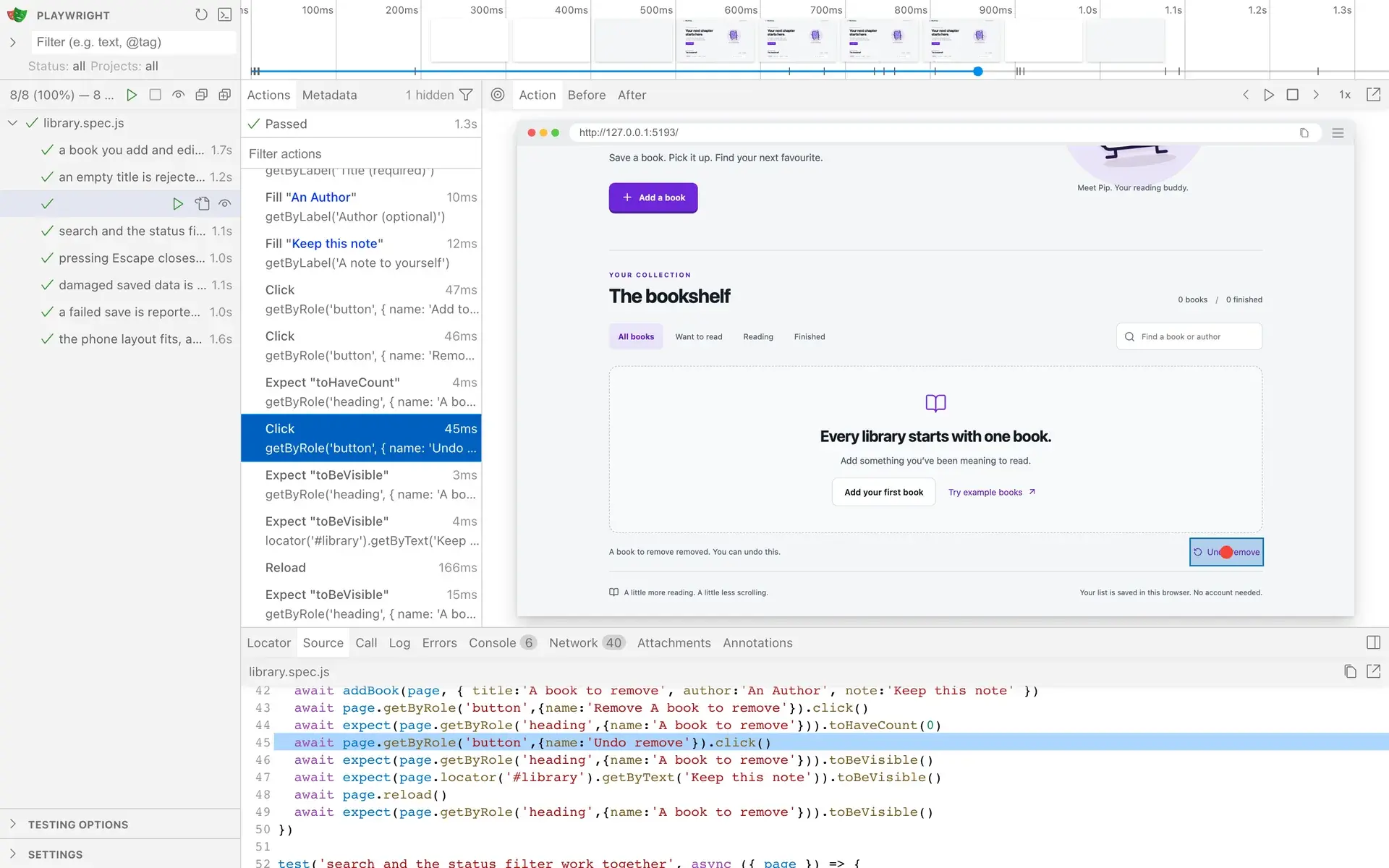
There are three areas to know:
- The test list, on the left. Every test appears by name. The triangle at the top runs them all, and the triangle beside a test runs just that one. A green tick means every expectation in the test was met. A red cross means one was not.
- The steps, in the middle. After a test runs, this lists everything it did in order: click, fill in “An Author”, reload, expect the heading to be visible. You can follow it without understanding the code shown beneath.
- The snapshot, on the right. Select any step to see the app exactly as it was at that moment. Step through the undo test and you can watch the book leave the list and come back.
Run your four main tests one at a time and step through each. You are checking that the test really does what its name claims. A test called “undo brings the book back” that never presses Undo would pass and prove nothing, and you can now spot that yourself.
When you have run all four, tell your agent so in one sentence. The epic has a task waiting for your own report, and the agent can’t tick it until you give one: “I ran the four main journeys in the visual runner and stepped through each. All four passed, and each did what its name says.” Change the second half to what you really saw.
If you’d like to see Chrome itself open and operate the app, ask your agent to run npm run test:watch-browser. The windows open and close quickly, so ask for one named test at a time if you want to follow along.
3. Read a failure
To trust a green tick, it helps to have seen a red cross. The next prompt asks the agent to break one thing in the app on purpose, show you which test notices, and then put the app back exactly as it was. The agent breaks Undo, and leaves the tests and the supplied server alone.
Show me a failing test
As a demonstration, temporarily change the client so that choosing Undo does nothing. Do not change any tests and do not change anything in src/server. Run the browser tests and show me which test fails and what the failure message says, in plain language. Then restore the app exactly as it was, run the tests again and confirm everything passes. Use Git to confirm no unintended changes remain.
Paste this into your project conversation.
The test named for undo should fail, and every other test should pass. If you have the visual runner open, run the failing test there while Undo is broken: the steps stop at the expectation that wasn’t met, and the snapshot shows the list still missing the book that should have come back.
This is how to read any failure. The test’s name tells you which behaviour broke, the failed step tells you what was expected, and the snapshot shows what happened instead. It is the same three-part report you learned to write by hand in Part 6.
Not every break turns a test red so clearly. If the client stopped checking for an empty title, the server would still refuse the book, as Part 5 described. No blank book would appear, and the empty-title test might well keep passing. Two layers of checking make the app safer, and they also mean that one broken layer can hide behind the other, which is why this demonstration broke Undo.
When a test fails during real work, the question is always whether the app is wrong or the test is. Usually the app is. Occasionally you have changed the behaviour deliberately, and the test needs updating to match the new plan. What you should not accept is an agent that weakens or deletes a failing test to make the run pass. Your project’s root file forbids it under its hard limits, and you now know to ask.
4. Check what only you can judge
Some judgements remain yours: whether a message reads clearly, whether the page is comfortable on a phone, whether you can see where you are when you use the keyboard. Go through the finished app once by hand. Use throwaway books, and keep to the same local address and browser.
| Try this | Expected result |
|---|---|
| Add a book with just a title. | It saves; the author and note are optional. |
| Add books in all three statuses. | Each book shows the status you chose. |
| Search for an author, then choose a status filter. | Results match both. Clearing them restores the list. |
| Search for something absent. | A clear “nothing found” message appears. |
| Open the address in a private window. | The list is empty, and your example-books option adds samples only when chosen. |
Add ?fail=writes to the address and try to add a book. | The app says it didn’t work, the form keeps what you typed and the list is unchanged. |
| Narrow the window to phone width. | Everything is readable and reachable with no sideways scrolling. |
| Press Tab through the page, then Escape in the form. | You can see which control has focus, and the form closes without saving. |
If you find a problem, report it with the three-part pattern, and ask for the fix and a test for it. Repeat your own check, then ask the agent to run all the tests again. Confirming that a fix hasn’t broken something else used to mean repeating every check by hand, and now takes seconds.
When you have been through the table, tell your agent which checks you did and what you saw. The prompt in step 5 has it record your checks separately from the tests.
5. Run the tests at every checkpoint
Tests only protect you if they are run. You already have a routine that happens at the end of every piece of work: the checkpoint handbook you wrote in Part 7, docs/handbooks/checkpoint.md. Put the tests at the front of it, and a broken app can no longer be saved as if it were fine.
The prompt asks for two things. First, a summary of what was really checked, keeping the automated tests apart from the checks you did by hand, so that nothing untested is recorded as passed. Second, one change to the handbook: the tests run first, and a failing run stops the checkpoint unless you say otherwise. It asks the agent to read the new step back to you and to save nothing yet.
Put the tests in my checkpoint routine
Continue docs/epics/05-check.md. Summarise the checks we actually performed and any remaining failures or untested areas. Keep four things separate: unit tests, browser journeys, your own exploration if we did any, and the manual checks I reported. Do not mark untested items as passed. Then amend docs/handbooks/checkpoint.md with me so that the tests run first: npm test, then npm run test:browser, and a failing run stops the checkpoint unless I say otherwise. Change nothing else in the handbook. Read the new first step back to me, then stop. Do not save a checkpoint yet.
Paste this into your project conversation.
Now ask for a checkpoint the way you did in Part 7, in one sentence:
Save the tested version
Checkpoint: Check reading-list behaviour
Paste this into your project conversation.
Watch what the agent does. It should run the unit tests and then the browser journeys before anything else, tell you they passed, and only then say what changed and save the checkpoint. One step changed in one file, and the agent’s routine changed with it.
If it saves without running the tests, tell it: “Read docs/handbooks/checkpoint.md again and follow it from step 1.” If a test fails, the checkpoint should stop. Ask the agent what failed and whether the app or the test is wrong, as in step 3, and ask for the checkpoint again once it passes.
6. Go back to a checkpoint, on purpose
You have saved a checkpoint at the end of every part, and so far you have taken it on trust that you could go back to one. Try it once now, while nothing is at stake.
In step 3 you asked the agent to put the app back by itself. Now that everything is saved, there is a stronger way: tell Git to put every file back as it was at the last checkpoint. The prompt asks the agent to break Undo again while you watch, show you that this is the only thing that has changed, and ask before discarding it. Then it returns to the checkpoint and shows you the test passing again.
Only after that does it record what happened and save a checkpoint called Return to a checkpoint, because a note written before going back would be discarded along with the break. The command it uses is git restore ., and it is the agent’s to run. You never need to type it.
Return to my checkpoint
Do the last task of docs/epics/05-check.md: return to a checkpoint once, on purpose, in the order the task gives. Everything is saved. While I watch, break one small thing, making Undo do nothing, and run the undo journey so that I see it fail. Do not change any tests or anything in src/server, and do not tick the task or write anything down yet. Show me what changed with git status and git diff, so that I see the break is the only change, and ask me before discarding it. When I agree, return to the checkpoint with git restore ., run the undo journey again and show me that it passes. Tell me plainly what happened. Only then tick the task, record the outcome in docs/progress.md and save a checkpoint called "Return to a checkpoint".
Paste this into your project conversation.
You should see the undo test fail, then Git’s list of what has changed, showing only that break, then a question asking whether to discard it. Say yes. The undo test then passes, and the agent reports that nothing differs from your checkpoint. Last, it ticks the task, records the outcome and saves the Return to a checkpoint checkpoint, running the tests first as your handbook now says.
Going back discards everything that was changed since the checkpoint, and that is why the agent asks first. Only work that was saved in a checkpoint can be returned to. If a stage ever goes badly, you can now say “return to my last checkpoint” and know what will happen.
Your tool may offer an undo of its own, and the two differ:
- Claude Code can also rewind the agent’s own file edits from inside the conversation. Anthropic’s own guidance says this does not replace saved versions such as your checkpoints.
- Codex can step back in the conversation, but it does not undo changes to your files, so your checkpoints are the only way back.
You now have an app whose important behaviour is checked every time you save it. Next, in Part 9, you’ll put it online and get a link you can share.
FAQ
How many tests should a small app have?
Enough to cover the behaviour you would be upset to lose. For this app that means the four main journeys, the saving and server failures, and search combined with the status filter. Our reference example has 27 browser journeys and 14 unit tests, but 13 of those journeys and 9 of those unit tests check the supplied stand-in server, which your project has no need to repeat. A long list of tests that check trivial things adds upkeep without adding confidence.
A test failed once, then passed when I ran it again. Is something wrong?
Probably not. Browser tests drive a real browser, and now and then a run is disturbed by timing: a page reloading at an awkward moment, or a computer busy with something else. A test that fails once and passes when run again, with nothing changed, is called flaky. Run it again two or three times. If it passes each time, carry on. If it keeps failing, or fails often, treat it as real and report it to your agent with the failure message. What you should never do is get used to ignoring a red cross.
Do the tests change my own saved books?
No. The tests start the app at a separate address and use a fresh, empty browser each time, so they have their own stand-in server with its own storage. As Part 5 explained, the list belongs to one address in one browser.
Can I go back further than my last checkpoint?
Yes. Every checkpoint you have saved since Part 1 is still there. Ask your agent to list your checkpoints and to explain what returning to an older one would discard before it does anything. Going back to the most recent one is the case you’ll need most often, and it is the one you have now tried.
Further reading
- Vibe engineeringSimon Willison
An experienced engineer’s essay on why tests, planning and checking matter more, not less, when an agent writes the code. No code to read.
- UI ModePlaywright
The official tour of the visual runner, mostly screenshots and short clips. It uses a few developer terms, but each panel is shown.