Part 7 of 10 · Save
Save your reading list.
Give the server somewhere lasting to keep the list, make the app honest when the server is slow or fails, then add search and filters.
By Ahmed Gadir13 min read
By the end of this part your books will still be there after a refresh, your app will say so plainly when its server is slow or fails, and you’ll be able to search the list and filter it by status. Every feature in your plan will exist.
At the end of Part 6 your app could add, edit and remove books, and it forgot them all when you refreshed. Here you’ll do the last two stages of docs/epics/04-build.md, C and D, and then turn the routine you ask for after every part into something your agent does from one sentence.
1. Why your list disappears
You saw the list empty itself on a refresh. While a page is open, everything on it keeps its working information in memory: the list, whether the form is open, what is typed in a search box. Developers call this state. State is fast and temporary, and a refresh throws it away and starts again.
Most state should be temporary. Nobody wants a half-typed search restored next week. The list of books is different, and keeping it is the server’s job, not the client’s. So far your stand-in server has used its memory store, which is state too: a refresh restarts the server along with the page, and it starts again with nothing. A server that is trusted with information writes it somewhere lasting whenever it changes, and reads it back when asked. Keeping that lasting copy is called persistence.
A real server keeps its lasting copy in a database on its own computer. Your stand-in server has a saved store that uses localStorage, a storage area the browser gives to each website address. As Part 5 set out, that keeps the list on this device, in this browser, for this address. It is not a backup, and it does not follow you to another device.
Switching from one store to the other is a single setting inside the server. The client doesn’t change at all, because the API stays the same. What happens behind an API can change without the client knowing.
2. Save the list and handle trouble
Stage D asks your agent for two things: to switch the server to its saved store, and to make the client honest when the server struggles.
The switch has a written procedure. Your project has a folder called docs/handbooks. A handbook is a written procedure for one kind of work, which the root file, AGENTS.md, points to, so that the agent reads it before doing that work. The one you need is already there: docs/handbooks/stand-in-server.md says how to explain the server, how to change its one setting, and how to show a slow or failing server without breaking anything. The table headed Handbooks in your AGENTS.md tells the agent when to read it, which is why the prompt below can name it without repeating what it says. You don’t need to open it.
Being honest means handling three outcomes. Once a server is involved, every action has three possible outcomes, and so far your client handles only the first. The server may answer straight away. It may answer slowly, because a real server sits across a network and is sometimes busy. Or it may not manage the job at all: it can refuse the request, fail while handling it, or never answer.
An app that ignores the second and third outcomes misleads the person using it. A slow answer with nothing on screen looks like a button that didn’t work, so people press it again and add the same book twice. A failure the app ignores is worse: the book appears to be there, and has vanished at the next refresh. So the prompt asks for three behaviours. The client shows that it is waiting. When a request fails it says so, keeps what you typed and leaves the list as it was. And it gives up on a request that gets no answer after a few seconds, which is called a timeout, and offers to try again.
The same honesty applies to the saved store. Browser storage can be full or blocked by a privacy setting, and a saved list can become unreadable. The stand-in server reports each of these in its answers, and the prompt asks the client to pass the news on in your brand pack’s words.
Last, the prompt asks for an option that loads a few example books, so that you’ll have something to search in step 4.
Stage D: save the list and be honest about trouble
Read docs/epics/04-build.md. Stages A and B are working. Do Stage D only, following docs/handbooks/stand-in-server.md and using docs/api.md, docs/flows.md and docs/brand/brand-pack.md. Before changing anything, explain in two or three sentences what the server's saved store is and what it is not. Then switch the supplied server to its saved store by changing the one setting in src/server-settings.js; change nothing in src/server. Show what the server says about storage honestly, in the brand pack's wording: a list kept in memory only, a saved list that could not be read, and a save the browser refused. Add an option to load example books, labelled from the brand pack, using the server's examples message, loading them only when I choose it; a new visitor starts with an empty list. Add a loading message while the list is fetched and a waiting state on the form's button while a change is sent. When the server refuses a change or fails, say so with the brand pack's server-failure message, keep the form open with what I typed and leave the list as it was; treat any answer that is not JSON as a failure. Add a request timeout of a few seconds in src/api.js so a load that never finishes becomes the failure message with its retry button. Keep the add-book control usable when the list could not be loaded, so I can still try to add a book, and make sure Escape still closes the form after a failed save. Show the brand pack's short note at the foot of the page when the stand-in server is running inside the page or a teaching switch is on. If the list cannot be fetched again after a change that got no answer, say only that the change may or may not have been made; never claim to have checked. When you finish, stop, show me each state using the server's delay and fail switches, tell me what to try and wait.
Paste this into your project conversation.
The prompt asks the agent to explain before it acts. For a change you can’t see directly, a short explanation lets you catch a misunderstanding before it is built. If the agent says it plans to write its own saving code in the client, stop it there: the server already has a saved store waiting to be switched on.
Then check the saving, at the same address as before:
- Add a book, edit its note and change its status. Refresh. Everything should still be there.
- Remove a book, choose Undo, and refresh. The restored book should remain.
- Close the browser tab, open the address again, and look once more.
If the list still empties, tell the agent: “I added a book and refreshed, and the list is empty. Check the setting in src/server-settings.js.” If your books vanished after the development server restarted, look at the address: the first FAQ below explains why a different number at the end means a different list.
You can also check the limit you learned about. Open the same address in a private window, or in a different browser. The list is empty there, because each browser has its own stand-in server with its own storage.
3. Make the server misbehave
A slow or failing server is awkward to arrange by hand, so the stand-in server has switches for it, which you met in Part 5. You add one to the end of your app’s address, and a note at the foot of the page reminds you that it is on. Try each in turn, with the Network tab open if you want to see the status codes.
- Add
?delay=1500to the address. Every answer now takes a second and a half. You should see your loading message when the page opens, and the form’s button should show that it is waiting when you add a book. - Change it to
?fail=writes. The list loads, but adding, editing and removing fail with500. Try to add a book: the app should tell you it didn’t work, the form should still hold what you typed, and the list should be unchanged. Refresh to confirm that nothing was added.
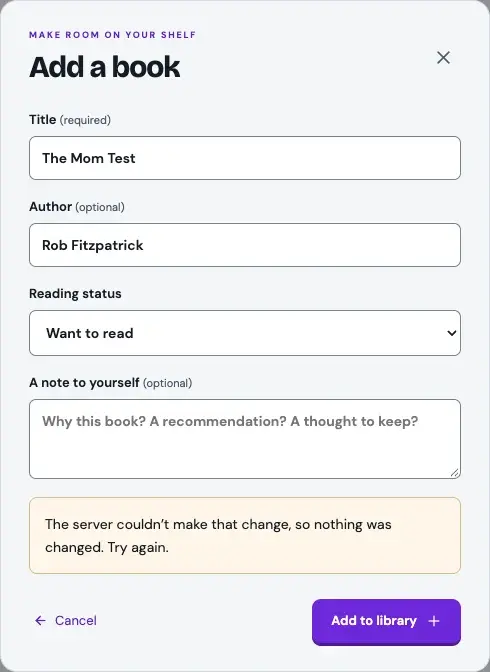
?fail=writes switched on. The form stays open, keeps what was typed and says plainly that nothing was changed. Yours will say it in your own words.- Change it to
?fail=all. Now even loading the list fails. You should see your failure message with a way to try again, and no empty shelf pretending that you have no books. - Change it to
?delay=10000. The server takes ten seconds, which is longer than the client is willing to wait. After a few seconds you should see the failure message and its retry button, with Add a book still there to use. Add a book now. The app waits a few seconds for an answer and gives up, then asks the server for the list to find out what happened and gives up on that too, so expect about twice the wait before it settles. It should then say only that the change may or may not have been made, and not claim to have checked. Press Escape to close the form.
Remove the switch from the address when you’ve finished. Your books are all still there, and so is the one you added under ?delay=10000: as docs/api.md says, the server makes a delayed change once its ten seconds are up, after the app has stopped waiting. The app could not know whether the book had been added, and said exactly that.
If a state surprises you, report it with the three-part pattern from Part 6: what you did, including the switch you used, what you expected and what happened instead.
This habit is worth keeping for every project. When you ask an agent for something that saves, sends or deletes information, also say what should happen while the app is waiting and when the request fails.
4. Find books and finish the details
Stage E finishes what a visitor can see: search, a filter by status, a small reaction from your mascot, a check at phone width, and a proper title for the published page.
One requirement in the prompt is there because it is easy to miss. “Filter by status” and “search by title” each sound complete. The question of what happens when both are in use only appears when someone types into the search box while Finished is selected, and the answer has to be a decision: a book must match both, not either. The prompt states it, so the agent doesn’t have to guess.
Stage E: search, filters and details
Read docs/epics/04-build.md. Stages A to D are working. Do Stage E only, using docs/brief.md, docs/flows.md and docs/brand/brand-pack.md. Add search by title or author, and a filter for every book, Want to read, Reading and Finished, labelled from the brand pack. They must work together: searching within a chosen status shows only books that match both. Show the brand pack's "nothing matched" message when nothing does. Give the mascot a small reaction when I hover over it, click or tap it, or reach it with the keyboard, and when I finish a book, alongside its celebration when a book is added, using CSS motion that stops under prefers-reduced-motion: reduce. Check phone and desktop widths for sideways scrolling and buttons I cannot reach. Compare the finished screens with the style-guide page and put any difference into the tokens rather than into a one-off rule. Update the title and the description in index.html so the published page describes my app. Run npm run build and tell me about any console errors. Leave the checkpoint-handbook task at the end of the stage until I ask for it. When you finish, stop, tell me what to try and wait.
Paste this into your project conversation.
Load your example books so there is something to search, then check:
- Search for part of an author’s name in capitals. The book should still be found, because matching ignores capital letters.
- Choose Finished, then search for a book you know is still marked Reading. You should see your “nothing matched” message, because the book fails one of the two conditions.
- Clear the search and choose the filter that shows every book. Everything returns.
- Narrow the browser window to roughly phone width. Nothing should need sideways scrolling, and every button should still be reachable.
- Click the mascot. It should react, and if you have reduced motion turned on in your system settings, it should stay still.
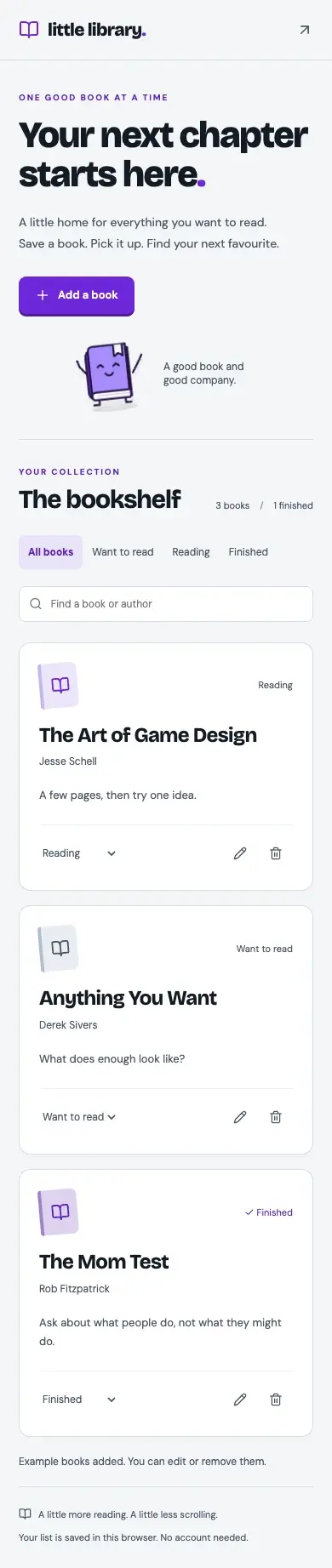
If one of these fails, report it with the three-part pattern again: what you chose or typed, what you expected and what you saw.
5. Write your checkpoint routine down
You are about to ask for the same thing yet again: inspect the changes, record the outcome, save a checkpoint with a name. You have typed a version of it at the end of every part.
In Part 6 a repeated request became one line in the root file. This one is different, because it is a procedure with several steps, and the root file is read in full at the start of every conversation, so the root file should stay short. A procedure goes in a handbook, which the agent opens only when it is doing that kind of work. The rule of thumb: a procedure you keep asking for belongs in a handbook.
The prompt asks the agent to write the routine down as docs/handbooks/checkpoint.md, to read it back to you, and to list it in the root file’s Handbooks table so that later conversations can find it. The row says what you will type, “Checkpoint:” followed by a name, so that those words lead the agent to the handbook. The prompt holds off saving the checkpoint itself, so that you can test the handbook properly in a moment.
Write the checkpoint handbook
Do the last task of Stage E in docs/epics/04-build.md. At the end of every part I ask you for the same routine, so write it down with me as docs/handbooks/checkpoint.md: inspect the changes and tell me what changed; leave out credentials, .env files, node_modules and dist; bring docs/progress.md up to date; commit with the name I give; never push. Keep it to a short numbered list and read it back to me. Then add a row for it to the Handbooks table in AGENTS.md, worded so that it reads as the routine to follow when I say "Checkpoint:" followed by a name, and change nothing else in that file. Do not save a checkpoint yet; I will ask for one in a new conversation.
Paste this into your project conversation.
The agent should read back a numbered list of about five steps, and tell you which row it added to the table. Read the list. It is your routine, so change anything you’d do differently, such as having the agent suggest a name when you don’t give one.
Now use your routine. Start a new conversation in the same project and type only this:
Checkpoint: Save the list
If it asks what you mean, or saves without telling you what changed, ask: “Which handbook covers saving a checkpoint?” If it names docs/handbooks/checkpoint.md, ask it to follow that. If it can’t, ask it to show you the Handbooks table in AGENTS.md, and have the row added if it is missing.
Every feature in your plan now exists, your four tests are green, your list is kept, and your agent knows your checkpoint routine. What you don’t have yet is tests for everything you added after those first four. Part 8 widens them, and shows you what a real failure looks like.
FAQ
Why is my list empty at a different localhost address?
The saved store belongs to one website address, and the number at the end of a local address, such as the 5173 in http://127.0.0.1:5173, is part of that address. If the development server starts with a different number, the browser treats it as a different site, with its own stand-in server and its own empty storage. Your earlier list is still saved under the old address. Your standing rule from Part 6 guards against this by having the agent check for a running app before it starts one. If it has happened anyway, ask your agent to stop every development server that is still running and then start one again; it will usually come back at the earlier address.
How much can localStorage hold?
Browsers typically allow around five megabytes per site, which is room for many thousands of books with notes. It holds text only, which is one reason this app has no cover images.
Why a handbook, and not another line in the root file?
The root file is read at the start of every conversation, whatever the task, so every line in it costs a little attention every time. One-line rules that are always true belong there. A procedure of several steps is only needed when that work comes up, so it lives in its own file and the root file just says when to read it.